

MiniMax H3 Tutorial: How to Control Dialogue and Native Audio
Control MiniMax H3 dialogue and native audio with prompt layers for speaker roles, synced sound effects, ambience, music, and fewer gibberish voices.
Key Takeaways
MiniMax H3 can generate video with native stereo audio, but clean results depend on how clearly you separate the visual timeline, speaker dialogue, scene sound, ambience, and music.
Use a fixed audio stack: visual timeline, speaker and dialogue, diegetic sound, overall soundscape, non-diegetic music, and audio restrictions. This turns the official H3 prompt fields into a simpler creator workflow.
Most audio failures come from vague speaker roles, long lines, empty sound space, mixed music and dialogue, or sound effects that are not tied to visible actions.
On FluxArt, you can use MiniMax H3 without ComfyUI or a local GPU. Start with a short audio test, review the result with sound on, then add more camera movement, references, or music.
Quick Answer: How to Control MiniMax H3 Audio
To control MiniMax H3 dialogue and native audio, write the prompt in layers. Start with the visual timeline. Then add speaker labels, exact short dialogue, action-linked sound effects, ambience, music, and audio restrictions.
If you want no speech, do not only write `silent`. Close every voice path: `No dialogue. No voiceover. No singing. No lyrics. No random voices. No individual background speech.`
On FluxArt, use the MiniMax H3 inputs shown in the generator: text, image, first-and-last-frame, multi-reference, or video-to-video. If your workflow does not show an audio-reference upload slot, treat audio-reference tips as guidance for official or local H3 setups that accept audio input.
What This Guide Is Based On
MiniMax describes H3 as a general-purpose omni-modal video model that can understand text, images, video, and audio context. The official Hugging Face model page describes native stereo audio and short video generation up to 2K in the hosted workflow. That makes H3 different from silent video models that need separate post-production audio.
The official H3 prompt guides are also clear about structure. The base prompt workflow separates `integrated_multimodal_description`, `overall_soundscape`, and `non_diegetic_music`. The reference prompt workflow adds fields such as `subject_definitions`, `summary`, `retention_analysis`, `detailed_description`, `overall_soundscape`, and `non_diegetic_music`. This article translates those fields into a practical writing system.
Community discussions add the missing user side. Many creators are not asking whether H3 can make sound. They are asking why it adds random speech, gives a line to the wrong character, cuts speech short, or lets music cover the voice. That is why this guide focuses on control and troubleshooting.
What MiniMax H3 Native Audio Means
MiniMax H3 native audio means the model generates the video and stereo audio together. The sound is part of the same generation pass as the picture. A prompt can include spoken dialogue, room tone, footsteps, impacts, weather, machinery, music, and other audio cues.
That does not mean every sound will be perfect. H3 still has to decide who speaks, when the line starts, how long the line lasts, what the room sounds like, and whether music belongs in the scene. If your prompt leaves those choices open, the model may fill the gap in a way you did not want.
For a creator, the practical question is not just "can H3 generate audio?" It is "how do I stop H3 from guessing the audio?" The answer is to write audio in layers, not as one loose phrase at the end.
Why MiniMax H3 Audio Gets Hard to Control
Audio control gets hard when the prompt gives H3 a scene but not a sound plan. A line like "a woman talks in a rainy street with music" sounds clear to a human. To a video model, it leaves too many open questions.
Who is the speaker? What exact line does she say? Is the rain close to camera or outside a window? Is the music heard by the character or only by the viewer? Are there background people? Should they talk, murmur, or stay silent?
The most common failures are predictable:
- Random or gibberish speech appears when no exact dialogue is defined.
- A background crowd turns into individual voices.
- The wrong character speaks because speakers are not labeled.
- A line gets cut off because it is too long for the shot.
- Music covers the voice because the prompt does not set priority.
- Sound effects happen late because they are not placed beside the visible action.
- Lip-sync looks weak when the speaker is too far from the camera or the line is too dense.
The fix is not to write a longer prompt. The fix is to give each audio layer a job.
The MiniMax H3 Audio Control Stack
Use this stack before every dialogue or native-audio prompt. It is a creator-friendly version of the official H3 prompt fields. It keeps picture, speech, scene sound, and music from fighting each other.
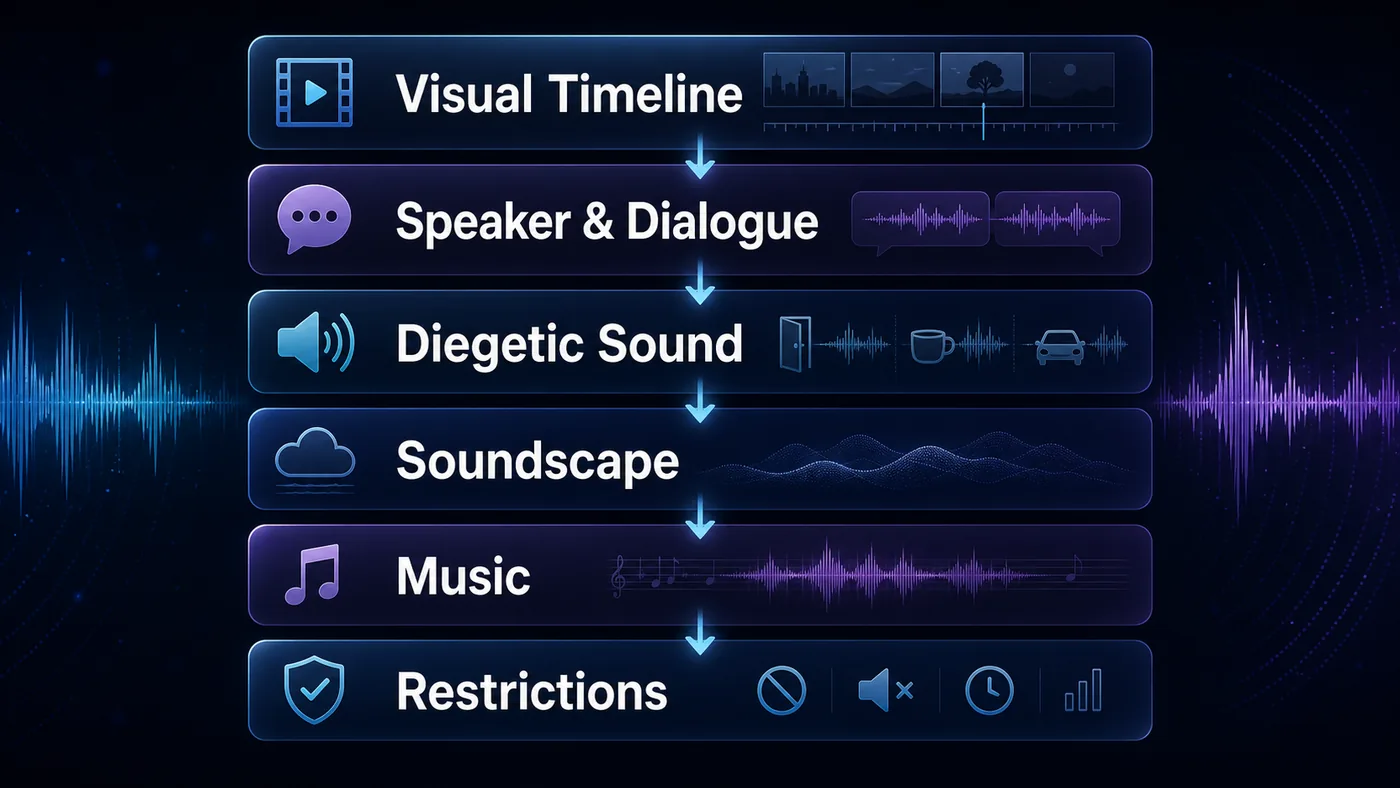
In official H3 language, the visual timeline, speakers, dialogue, and many action-linked sounds belong inside the detailed multimodal description. The soundscape describes the acoustic bed. The non-diegetic music field describes score or music that is not physically present in the scene.
You do not need to use the exact official field names inside FluxArt. But you should preserve the separation. That is what makes the prompt easier for H3 to follow.
A Copy-Ready MiniMax H3 Prompt Template
Start with this template when dialogue or native audio matters. Keep the sections short. Delete any line that does not apply to your scene.
Scene:
[Describe one clear scene in playback order. Include subject, setting, camera, and visible action.]

Speaker and Dialogue:
Speaker 1: [identity, screen position, tone]
Line at 00:02: "[short line]"
No other characters speak.

Diegetic Sound:
[Physical sounds tied to visible actions, in order.]

Overall Soundscape:
[Room tone, weather, distant traffic, crowd murmur, or other ambience.]

Non-Diegetic Music:
[Music direction, or "No background music."]

Audio Restrictions:
No random voices. No gibberish speech. No lyrics unless requested. No extra dialogue.
This template will not guarantee exact speech or perfect lip-sync. It gives H3 fewer guesses to make. That is the useful part.
If you use reference media, add a short role list above the scene. In FluxArt, follow the reference inputs shown by the selected workflow. If your H3 workflow accepts audio references, add a line such as: `Audio 1 defines voice tone only, not extra dialogue.`
How to Write Dialogue That Stays in Sync
Dialogue works best when it is short, assigned, visible, and timed. Do not write a paragraph of script and hope H3 compresses it into a short clip. The line should fit the shot.
Use Short Lines
Short lines give the model room to match mouth movement and pacing. A single sentence is usually safer than a multi-sentence monologue. If the line needs more than a few seconds, split the idea into another shot.
Bad: `The man explains the full product story while walking through the city and reacting to the crowd.`
Better: `Speaker 1 says softly at 00:03: "We built this for days like this."`
Label Every Speaker
Use stable labels such as Speaker 1 and Speaker 2. Describe where each person is in the frame. If one character should stay quiet, say so.
Speaker 1 is the woman in the blue jacket on the left. She says: "We have one chance."
Speaker 2 is the man by the door. He stays silent and only looks toward her.
No off-screen voices.
Match Dialogue Length to the Shot
If the video has eight seconds of quiet action after one short line, H3 may try to fill the empty audio space. Add ambience, music, or an explicit no-speech instruction for the rest of the shot.
Separate Voiceover From On-Screen Speech
If the voice is narration, say that it is off-screen. Also say whether the visible character keeps their mouth closed. This reduces the chance that H3 makes the wrong person speak.
How to Separate Ambience, Sound Effects, and Music
Do not put every sound into one sentence. Dialogue, sound effects, ambience, and music serve different jobs.
Ambience should feel like the room or environment. Sound effects should arrive with visible actions. Music should support the mood without stealing the foreground from speech.
If a scene needs dialogue, keep music quiet and instrumental. If a scene needs no speech, say more than `silent`. Use: `No dialogue. No voiceover. No lyrics. No individual background voices. Ambience only.`
How to Prevent Gibberish or Unwanted Speech
Gibberish often appears when the model has an audio gap to fill. It may happen in quiet scenes, crowd scenes, music scenes, or workflows where an audio reference is available but not clearly scoped.
Use a direct no-speech block when you want a clean non-dialogue clip:
Audio Restrictions:
No dialogue. No voiceover. No singing. No lyrics. No random voices. No individual background speech. Only rain, footsteps, and soft room tone.
If you want a crowd, avoid wording that sounds like named speakers. Write `indistinct crowd murmur` or `distant crowd ambience`, then add `no clear individual speech`.
If you use music, specify whether it has vocals. For dialogue scenes, choose `low instrumental music, no vocals`. For no-dialogue scenes, still say whether music is present or absent. An undefined music layer can create strange vocal-like sounds.
If your H3 workflow supports a voice or audio reference, tell the model what to take from it. For example: `Use Audio 1 only for calm male voice tone and delivery. Do not copy any words from the reference audio.` If the selected workflow does not show audio input, keep this instruction for official or local H3 setups that do.
Bad Prompt vs Better Prompt Examples
The fastest way to improve H3 audio prompts is to see what changed. These examples are intentionally plain. The goal is control, not decorative prose.
Example 1: Single Speaker Dialogue
Bad prompt: `A man talks in a cafe while rain falls and music plays.`
Problem: The speaker, line, timing, rain source, and music priority are unclear.
Better prompt:
Medium close-up of a man sitting alone by a cafe window at night. Rain streaks down the glass. He looks at the untouched coffee cup, then speaks softly at 00:02: "I should have called sooner."

Speaker and Dialogue: Speaker 1 is the seated man. Only Speaker 1 speaks. No other voices.
Diegetic Sound: soft rain against the window, ceramic cup sliding gently on the table.
Overall Soundscape: quiet cafe room tone.
Non-Diegetic Music: no background music.
Example 2: No-Dialogue Cinematic Scene
Bad prompt: `Silent shot of a woman walking through a station.`
Problem: `Silent` alone may not close all voice paths.
Better prompt:
Wide cinematic shot of a woman walking through an empty train station at blue hour. The camera tracks slowly beside her as lights flicker in the distance.

Speaker and Dialogue: no dialogue, no voiceover, no off-screen voices.
Diegetic Sound: footsteps echo on the tile floor, distant train hum.
Overall Soundscape: quiet station ambience with soft electrical buzz.
Non-Diegetic Music: no music, no lyrics.
Example 3: Two-Person Dialogue
Bad prompt: `Two detectives argue in an office.`
Problem: H3 does not know who speaks first, who stays silent, or how the lines fit the shot.
Better prompt:
Medium two-shot in a dim office. Speaker 1 is the woman at the desk. Speaker 2 is the man standing near the door.

00:02 Speaker 1 says calmly: "You saw the file."
00:05 Speaker 2 answers quietly: "I saw the missing page."
No other people speak. No off-screen voices.

Diegetic Sound: paper slides across the desk, rain taps the window.
Overall Soundscape: low office room tone.
Non-Diegetic Music: very low instrumental tension, no vocals.
Example 4: Product Demo Voiceover
Bad prompt: `A voice explains the product while the camera shows the bottle.`
Problem: The voice role and visual timing are too loose.
Better prompt:
Clean macro product video of a matte black skincare bottle on wet stone. The camera slowly pushes in as water beads move across the label.

Voiceover: Off-screen narrator says at 00:02: "Deep hydration, without the weight."
No visible person speaks. No lips appear in frame.
Diegetic Sound: soft water droplets and glass bottle set-down.
Overall Soundscape: clean studio room tone.
Non-Diegetic Music: minimal soft pulse under the voice, no vocals.
Troubleshooting MiniMax H3 Dialogue and Audio Problems
Use this table after the first generation. Watch the result with sound on. Find the first moment where the audio fails, then fix the smallest relevant layer.
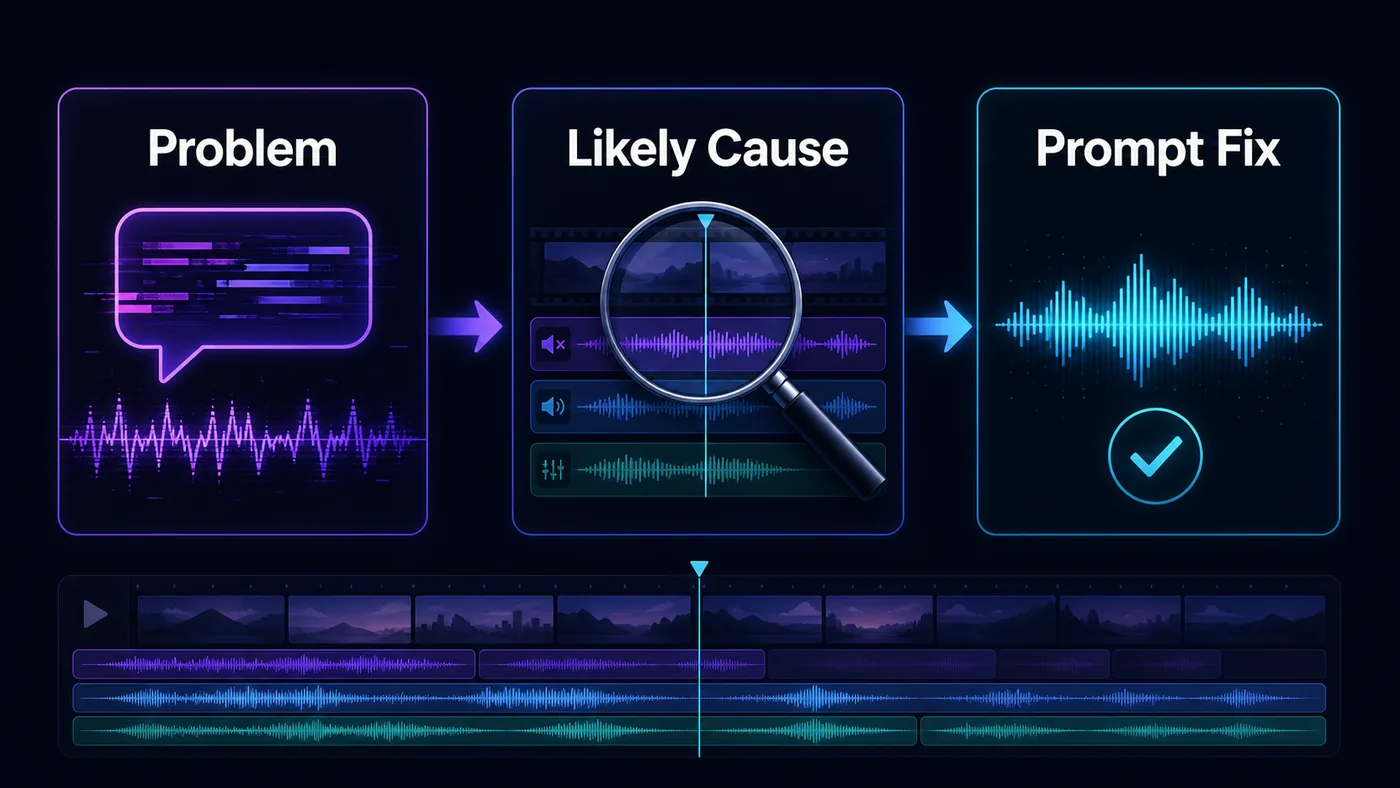
Community discussions often mention the same pattern: users are impressed by H3 audio, but frustrated when speech appears without permission or attaches to the wrong speaker. This is why the article treats troubleshooting as a core section, not a footnote.
When to Use Native Audio and When to Add Audio Later
MiniMax H3 native audio is useful when the sound belongs to the shot. It works best when the sound can be described as part of the visual event.
This honesty matters. H3 is strong because it can create a complete audio-video moment. It is not a replacement for every audio workflow. If a client needs exact pronunciation, a fixed brand voice, or a long approved script, post-production audio is still safer.
How to Generate MiniMax H3 Videos in FluxArt
You do not need ComfyUI or a local GPU to try these prompts in FluxArt. Open the MiniMax H3 AI video generator, choose the workflow that matches your input, and start with a short audio-control test.
A practical FluxArt workflow is simple:
- Start with one scene and one audio goal.
- Write the visual timeline before the sound layers.
- Add speaker labels, short dialogue, ambience, sound effects, and music.
- Generate, watch with sound on, and fix one layer at a time.
Use text to video when you only have an idea. Use image to video when a still image should define the first frame or subject. Use reference to video or video to video when identity, movement, or source timing matters.
If your first result has good visuals but weak audio, keep the scene text mostly unchanged. Revise the audio block first. That makes each reroll easier to understand.
FAQ
Can MiniMax H3 Generate Videos With Native Audio?
Yes. MiniMax H3 can generate video with native stereo audio. The audio can include dialogue, ambience, sound effects, and music. The result still depends on prompt clarity, scene complexity, and the workflow you use.
How Do I Make MiniMax H3 Say Exact Dialogue?
Write the exact line, label the speaker, and keep the line short. Put the dialogue near the visual action that supports it. If another character should not speak, say that they remain silent.
How Do I Stop MiniMax H3 From Generating Gibberish?
Close every unwanted voice path. Use instructions such as no dialogue, no voiceover, no singing, no lyrics, no random voices, and no individual background speech. Then define the ambience you do want.
How Do I Create a MiniMax H3 Video With No Dialogue?
Do not rely on the word silent alone. Write a no-speech block and describe the non-voice audio: footsteps, rain, wind, room tone, machinery, or other ambience. Also set music to no music or instrumental only.
Can MiniMax H3 Sync Sound Effects With Actions?
It can generate synchronized sound effects, but you should place each cue beside the visible action. For example: the door opens and the latch clicks. A separate sound list is weaker than playback-order writing.
Can MiniMax H3 Generate Music and Dialogue Together?
Yes, but keep music simple when dialogue matters. Use low instrumental music under the voice and avoid vocals unless singing is the main goal. If the music competes with speech, lower its role in the prompt.
Why Does the Wrong Character Speak?
The speaker role is usually unclear. Label each speaker, describe their position, assign each line, and say which characters stay silent. Avoid crowd or off-screen voice wording unless you actually want it.
Can I Use Audio References With MiniMax H3 in FluxArt?
Use the inputs shown in the selected FluxArt workflow. If the MiniMax H3 generator does not show an audio-reference upload slot, audio-reference advice applies to official or local H3 workflows that accept audio input.
Do I Need ComfyUI to Use MiniMax H3?
No. FluxArt lets you use MiniMax H3 in the browser. ComfyUI is useful for local open-weight workflows, but FluxArt users do not need to install nodes, download weights, or manage GPU memory.
What Is the Best MiniMax H3 Prompt Structure for Native Audio?
Use visual timeline, speaker and dialogue, diegetic sound, overall soundscape, non-diegetic music, and audio restrictions. This structure keeps the main audio layers separate and easier to debug.
Sources and Further Reading
Official model information: MiniMax H3 open-source announcement, MiniMax H3 on Hugging Face, and MiniMax H3 integration resources.
Official prompt and workflow references: MiniMax H3 base prompt guide, MiniMax H3 reference prompt guide, ComfyUI MiniMax H3 tutorial, and Runware's H3 sound and voice guide.
Community context: Reddit discussions about H3 gibberish speech, H3 prompting structure, unwanted speech, and dialogue length issues informed the troubleshooting sections. These are user reports, not official benchmarks.
Further watching: the embedded ComfyUI MiniMax H3 walkthrough is a useful video supplement for local workflow context. For reference-video workflows, see Benji's MiniMax H3 walkthrough.
Last reviewed: August 16, 2026.

Create a MiniMax H3 Video With Cleaner Dialogue
Generate With MiniMax H3

 FluxArt