

Text to Video · Dialogue
0 / 5000
160
Create polished videos with FluxArt's latest models
2K Video With Native Stereo Audio
MiniMax H3 AI Video Generator
Create MiniMax H3 videos online from text, images, first and last frames, or video references. Generate up to 15 seconds at 2K with control over motion, camera movement, dialogue, and native stereo audio.
Up to 15 Seconds2K OutputNative Stereo AudioText, Image, and Video References
Examples
See What MiniMax H3 Can Create
Explore four 15-second text-to-video examples created on FluxArt. See how the model handles character dialogue, product advertising, fast action, game UI, and native audio.
01 / 04
Showing Character Dialogue and Performance, slide 1 of 4.
Overview
What Is MiniMax H3?
This general-purpose, omni-modal AI video model combines text prompts with image, video, and audio references to create short videos with native stereo sound.
Built by MiniMax
MiniMax H3 is the official model name. Some third-party sites also call it Hailuo 3 or Hailuo 03.
4–15 Seconds at 24 FPS
The official MiniMax H3 model supports 4–15-second video at 24 FPS.
768P and 2K Output
H3-Base creates 768P output. The official 2K workflow reuses the original prompt and references to preserve finer details and text.
Available on FluxArt
Use the model across text, image, first-and-last-frame, reference, and video-to-video workflows. Check the generator above for current settings and credit costs.
Capabilities
What Makes MiniMax H3 Different?
The model combines multimodal references, native stereo audio, instruction-led editing, and video-to-video motion transfer in one workflow.
Text, Image, Video, and Audio in One Context
Official workflows can use text, images, video, and audio together. Give each reference a clear role in identity, motion, composition, style, or sound.

Native Stereo Audio With Video
Generate dialogue, ambience, sound effects, and music with the video so picture and sound follow the same timeline.
Video-to-Video Motion Transfer
Use a reference video to guide body movement, camera motion, and timing while changing the subject, environment, or visual style.
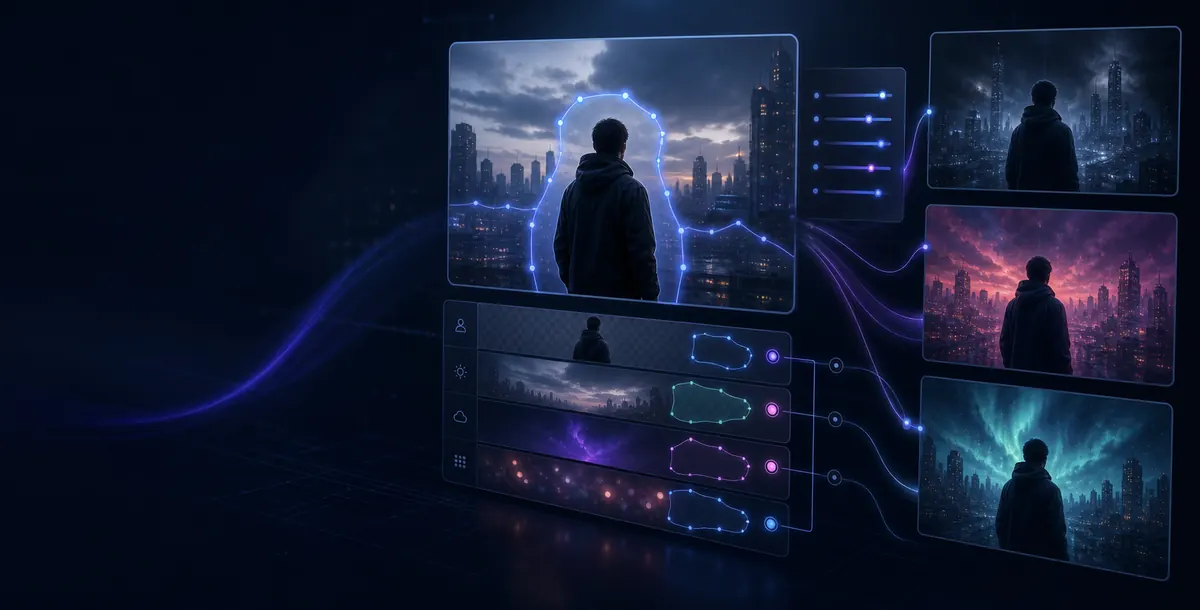
Instruction-Led Creation and Editing
Use natural-language instructions to guide what H3 should generate, preserve, replace, or restyle, including on-screen text and brand details.
Use Cases
What Can You Create
With MiniMax H3?
Create short character scenes, product ads, action shots, and animated game interfaces. Each example combines visual direction, camera movement, and native stereo audio.
Create a Dialogue-Driven Character Scene
Model Comparison
MiniMax H3 vs Seedance 2.5 vs Hailuo 2.3
Compare the models available on FluxArt by input type, clip length, resolution, audio, reference control, and open-weight access.
This comparison reflects the workflows currently available on FluxArt. Official model capabilities may differ, and available settings can vary by mode.
Multimodal Inputs
Control Visuals, Motion, and Sound
Direct the scene with text. Use images for visual consistency, video for motion and timing, and your prompt for dialogue and sound.
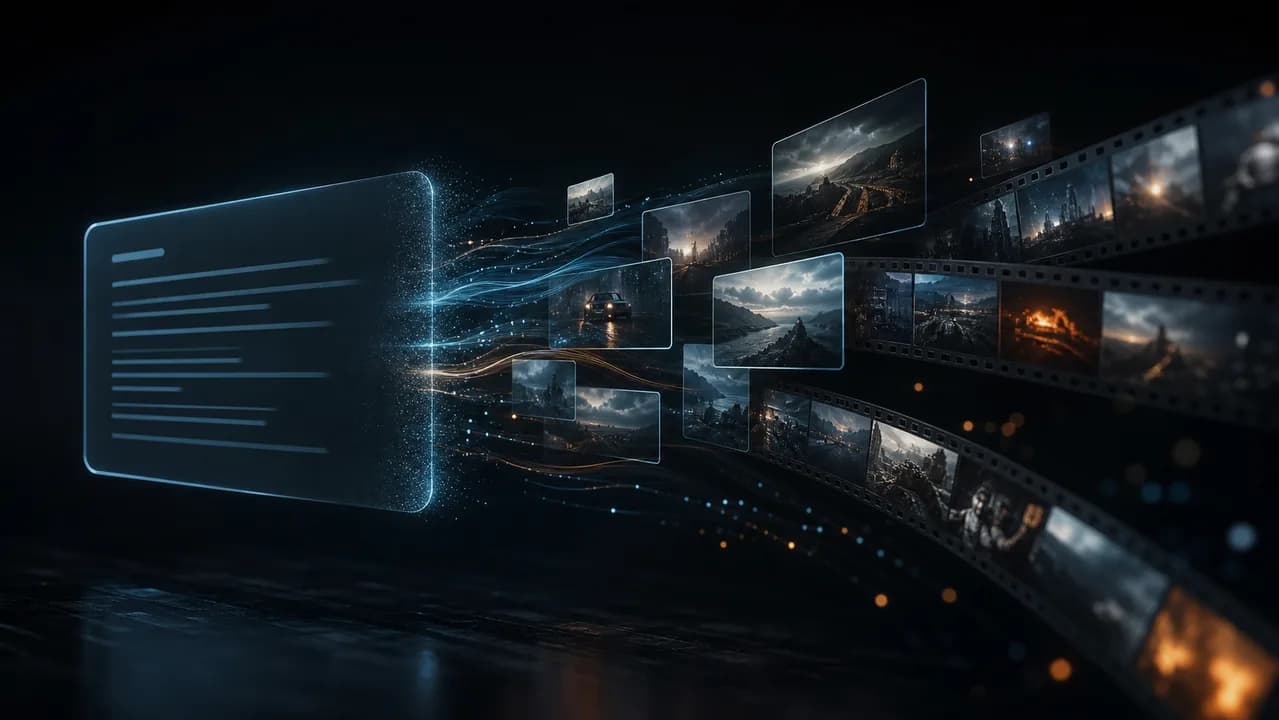
Direct the Full Scene
Describe the scene, action, camera, dialogue, ambience, and music.
Create From Text
Keep Visuals Consistent
Use images to preserve characters, products, visual style, or keyframes.
Animate an Image
Guide Motion and Timing
Use video to guide body movement, camera motion, timing, or transformation.
Transform a Video
Add Dialogue and Sound
Describe dialogue, ambience, effects, and music in the prompt. Audio upload is not yet available on FluxArt.
Create With SoundQuick Start
Create a MiniMax H3 Video in 3 Steps
Choose how to start, add your prompt and references, then review the settings and generate. Watch the result with sound on and refine it if needed.
1
Choose Your Starting Point
Start with text, an image, first and last frames, reference media, or an existing video.
2
Add Your Prompt and References
Upload only what you need. Describe the action, camera, dialogue, sound, and ending in playback order.
3
Check the Settings and Generate
Review the available duration, aspect ratio, resolution, and credit estimate. Generate, then watch with sound on and refine if needed.
Prompt Guide
Get Better MiniMax H3 Results With Clear Prompts
Describe one clear scene in playback order. Keep the action, camera, dialogue, sound, and ending easy to follow.
Plan One Clear Scene
1
Set the Opening
Define the subject, setting, style, framing, and lighting.
2
Describe the Action
Explain one main action in the order it happens.
3
Guide the Camera
Use one clear camera move that supports the action.
4
Direct the Sound and Ending
Keep dialogue short, time sounds to visible actions, and state the final frame.
Simple MiniMax H3 Prompt Structure
References: Use Image 1 for [identity or style] and Video 1 for [motion or camera].

Scene: [subject, setting, style, framing, and lighting].
Action: [what happens in playback order].
Camera: [one camera move and its pace].

Dialogue: [speaker] says in [language], "[short line]."
Scene sound: [ambience and effects tied to visible actions].
Music: [style, tempo, instruments, and ending].

Ending: [final action or composition].
Use only the lines your scene needs. Keep each reference focused on one job, and avoid conflicting camera directions. For a deeper audio workflow, read the MiniMax H3 dialogue and native audio tutorial.
Open Weights and Specifications
Run MiniMax H3 Locally or Use It Online
Compare what you can download, what stays hosted, and what each option requires.
Is MiniMax H3 Open Source?
MiniMax describes H3 as open source, but “open weights” is more precise. You can download H3-Base model files and run them on your own hardware.
FL2VA
Create from text, a first frame, a last frame, or both.
Ref2VA
Create from text plus image, video, or audio references.
The complete 2K workflow also uses two hosted steps. H3-Context-IR prepares complex inputs before generation. H3-Regenerate-2K rebuilds the result at 2K. Neither hosted step is included in the public download.
The license excludes the United States, European Union, United Kingdom, and South Korea unless separately authorized. It also covers commercial products, hosted services, attribution, and acceptable use. Review the current license before deployment.
Official MiniMax H3 Specifications
Architecture
33B-parameter H3-Omni Transformer
Downloadable Modes
FL2VA for text or keyframes; Ref2VA for mixed references
Duration
4–15 seconds
Frame Rate
24 FPS
Base Output
768 pixels on the shorter side
2K Output
2K through a hosted regeneration step
Audio
Native 32 kHz stereo
Dialogue
Stable support for 11 languages
First/Last Frame
Text only, one keyframe, or first and last frames
Omni Reference
Up to 12 files total (max 9 images, 3 videos, and 3 audio clips)
Choose Local MiniMax H3 or FluxArt
Setup
Local
Download H3-Base and load a supported ComfyUI or developer workflow.
FluxArt
Open the generator and choose an available MiniMax H3 workflow.
Hardware
Local
Provide compatible GPU hardware and manage memory and storage.
FluxArt
Create without downloading model files or supplying a local GPU.
Output
Local
Create video with a 768-pixel short side. The hosted 2K step is not included.
FluxArt
Use the resolution and duration shown in the live generator.
Maintenance
Local
Update model files, software, and performance settings yourself.
FluxArt
Use a maintained workflow with a credit estimate shown before generation.
Local speed depends on your hardware and generation settings. Some videos may still take several minutes to generate.
Generation cost depends on the workflow and selected settings. Check the credit estimate before submitting; the plans below apply across FluxArt and are not the price of one video.
Simple, Transparent Pricing
Choose a plan with the video credits, privacy controls, and workflow capacity that fit your creative work.
MiniMax H3 FAQ
MiniMax H3 AI Video Generator FAQ
Find clear answers about creation modes, prompts, native audio, video length, 2K output, pricing, open weights, and local use.
1What Is MiniMax H3?
It is MiniMax's general-purpose, omni-modal AI video model. The model understands text, images, video, and audio in one context and generates video with native stereo audio. Official workflows include text-to-video, first- and last-frame generation, and reference-led creation.
2Is MiniMax H3 the Same as Hailuo 3?
Some third-party pages call the model Hailuo 3 or Hailuo 3.0. MiniMax uses MiniMax H3 as the official name, so FluxArt does the same.
3Which MiniMax H3 Creation Mode Should I Use?
Use Text to Video when you only have an idea. Choose Image to Video for one starting image, or First & Last Frame to control both ends. Use Reference to Video for identity, style, or motion, and Video to Video to transform an existing clip. The generator shows the inputs available for each workflow.
4How Do I Write a Better MiniMax H3 Prompt?
Describe one clear scene in playback order. State the subject, action, camera movement, dialogue, sound, and final frame. Give each reference one job, such as identity, style, motion, or audio, so the instructions do not conflict.
5Does MiniMax H3 Generate Native Audio?
Yes. It generates video and native 32 kHz stereo audio together. You can prompt dialogue, ambience, sound effects, and music. For clearer speech, identify the speaker, keep each line short, and describe sounds in playback order.
6How Long and at What Resolution Can MiniMax H3 Generate?
Official workflows support 4–15-second videos at 24 FPS. The downloadable H3-Base model outputs video with a 768-pixel short side. MiniMax's hosted 2K step rebuilds that result using the original prompt and references. Check the FluxArt generator for the currently available settings.
7Why Do Faces, Dialogue, or References Sometimes Drift?
Results can drift when faces are small, scenes are crowded, references conflict, or a shot contains too many actions and lines. Use closer framing, fewer subjects, one role per reference, and short dialogue. If one detail fails, revise that instruction instead of rewriting the entire prompt.
8Is MiniMax H3 Free to Try on FluxArt, and How Much Does It Cost?
Yes. New users receive free credits and do not need a credit card. Cost varies by workflow and settings, and the generator shows the estimate before submission. Credits are released if a task fails because of a FluxArt or model-service error.
9Should I Use MiniMax H3, Seedance 2.5, or Hailuo 2.3?
Choose MiniMax H3 for native audio, mixed references, or video transformation. Choose Seedance 2.5 for longer clips or more reference media. Choose Hailuo 2.3 for a focused image-to-video workflow. Compare the available settings before you generate.
10Is MiniMax H3 Open Source or Open Weight?
MiniMax H3 is best described as an open-weight model. You can download H3-Base, but not the complete hosted workflow. FL2VA supports text and keyframes. Ref2VA supports mixed image, video, and audio references. The input-processing and 2K rebuilding steps remain hosted.
11Where Can I Download the MiniMax H3 Weights?
Download H3-Base from the official MiniMax H3 page on Hugging Face. The GitHub repository provides code and setup guides. Review the Community License before local deployment.
12Do I Need ComfyUI or a High-End GPU to Use MiniMax H3?
No. FluxArt runs MiniMax H3 in the browser, so you do not need ComfyUI or a local GPU. You need compatible GPU hardware only if you deploy H3-Base yourself. Local memory use and speed depend on the model version and settings.
13Can I Use MiniMax H3 Videos Commercially?
Commercial use depends on the applicable terms and your rights to every input and output. This includes prompts, reference media, people, voices, music, and trademarks. Open weights do not grant unrestricted commercial rights. Review the Community License and FluxArt Terms before publishing.
14Does FluxArt Offer a MiniMax H3 API?
FluxArt currently offers the model through its browser-based generator, not a public customer-facing API. Developers who need API access should use the official MiniMax platform or a provider whose documentation, pricing, and terms fit their project.
Last updated: August 15, 2026. Reviewed against the MiniMax H3 model card, Community License, and settings currently listed on FluxArt.
More Models
Explore More Leading AI Video Models
Compare more powerful AI video models and find the right fit for your creative workflow.
Model Tutorials
Go Deeper With Practical Model Tutorials
Learn how to plan longer Seedance 2.5 videos and control MiniMax H3 dialogue, native audio, references, and review steps before you generate.
Practical Guide
Seedance 2.5 Tutorial: Create Consistent 30-Second Videos
Plan timed beats, assign reference roles, choose the right duration, and review each scene for drift before spending more credits.
Read TutorialPractical Guide
MiniMax H3 Tutorial: Control Dialogue and Native Audio
Write clearer audio prompts with speaker labels, short lines, ambience, sound effects, music rules, and fixes for unwanted speech.
Read TutorialMore Tools
Explore More AI Video Tools
Choose the AI video workflow that matches the source material you already have.
Text to Video
Turn a written scene into an original AI video with motion, camera, and audio direction.
Create From TextImage to Video
Animate a photo, character, illustration, or product image with a controlled shot.
Animate an Image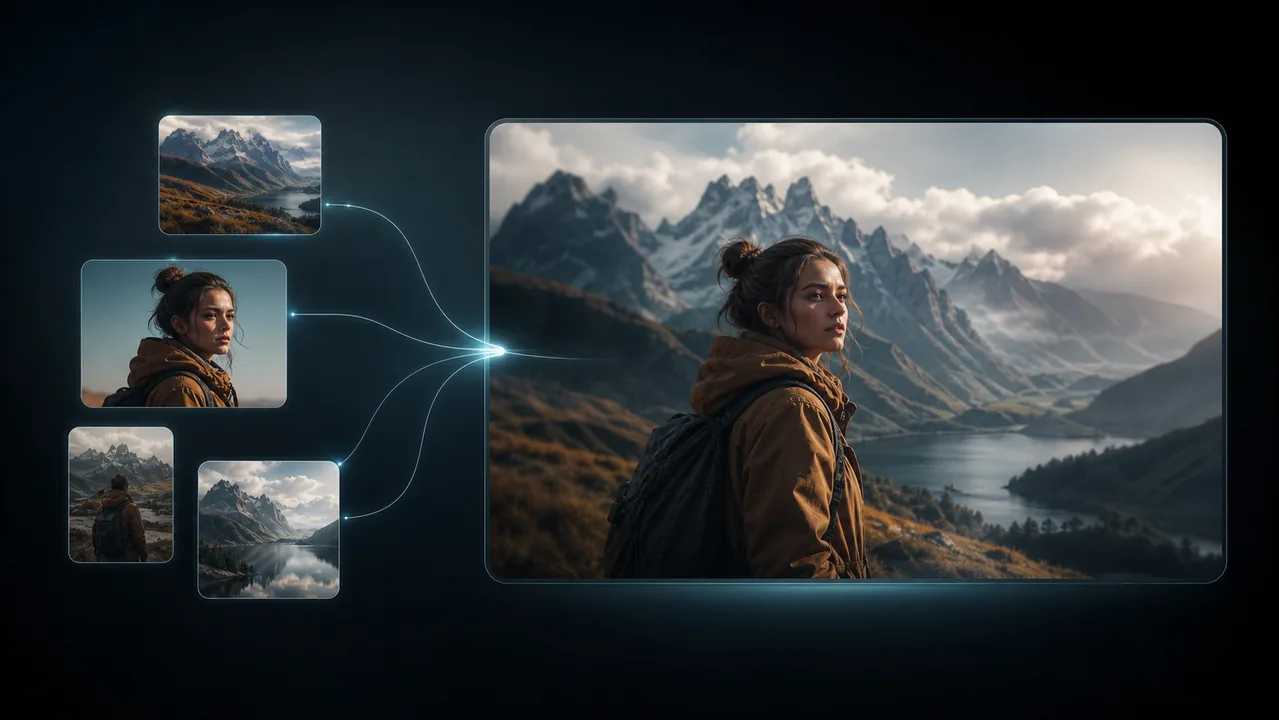
Reference to Video
Use reference assets to guide identity, motion, visual style, timing, and sound.
Create From ReferencesVideo to Video
Transform existing footage while preserving useful motion and temporal structure.
Transform a Video
Create a MiniMax H3 Video With Native Audio
Start with text, an image, first and last frames, or reference media. The model is already selected. Choose your settings and see the credit cost before you generate.
Free credits for new users · No credit card required · No local setup